For teachers · pick in five minutes

Use Next Token in class

Pick the plan that fits your time, then open the pages in the order listed. Students need no account and give no personal data.

1,295 source-checked AI records · 60 Five-Minute AI Lessons (46 open now) · 60 AI Words

Use this week

Week 43, 2026 · Oct 19–25
This week's question

A new lab with a name nobody knows put out top-tier performance under the loosest license there is. Is leaving things open paying off again?

Weekly quiz · Week 43, 2026

Left open, stopped short

10 questions · AI-written questions

One line to show your students

Write it on the board or paste it into your class chat. It opens straight away — no app, no sign-in.

next-token.net/en/learn

Students type a class quiz code at next-token.net/en/quiz.

Three class plans

Each step names the page to open and the file to print, in order. Change the timings to suit your group.

10 min

Homeroom

When
A new weekly quiz comes out each week, made from that week's records. Use it once a week, in ten minutes of homeroom or the end of the day.
You need
One classroom screen and students' phones (no phones? one screen and a show of hands works too).
  1. 1 min

    Show this week's question

    Put “This week's question” on the screen and read it together. It gives everyone a feel for what the AI records added this week are about.

  2. 7 min

    Take the weekly quiz in class mode

    1. On the latest quiz page, open “Class mode” and press “Create a class”.
    2. Read out the 6-character class code on the screen. Students open next-token.net/en/quiz on their phones and type the code. They never type a name: the server picks a random nickname.
    3. When everyone is done, look at the scoreboard and each question's right-answer rate together, then press “Close the class”.
  3. 2 min

    Open the record behind the hardest question

    Pick the question with the lowest right-answer rate and use “See the record” under its explanation to read the record it came from.

    For every day: put “Which came first?” (five questions a day) or “On this day” on the screen — three minutes is enough.
45 min

One class period

When
A full computing, elective or club period. New to it? Start with DAY 01, “How does AI talk?”.
You need
One classroom screen and an A4 worksheet for each student. The experiment works on one shared screen too.
  1. Before

    Read the plan, print the worksheets

    Read this lesson's plan in the teacher kits and print the Part 1 worksheets. The answer key is at the end of the worksheet pack.

  2. 0–5 min

    Warm-up — write a first guess

    Show the question in the lesson title. Students write their own guess in box 1 of the worksheet. Don't give the answer yet.

  3. 5–30 min

    Explore — explanation, experiment, figure

    Read the explanation together (about 8 min), then do the experiment and note what you saw in box 2 (about 12 min). Go over the figure once more (about 5 min).

  4. 30–40 min

    Check — three quiz questions

    Students try the three questions on the worksheet first, then you mark them together with the quiz on the lesson page and read the explanations.

  5. 40–45 min

    Wrap-up — today in one line

    Read “today in one line” together. Students rewrite it in their own words in the last box.

    To use another lesson, pick a part and a DAY in the teacher kits. All 46 lessons open now have a plan and a worksheet. Lesson kits for teachers

4 weeks

After school

When
An AI club or after-school group, one hour a week for four weeks.
You need
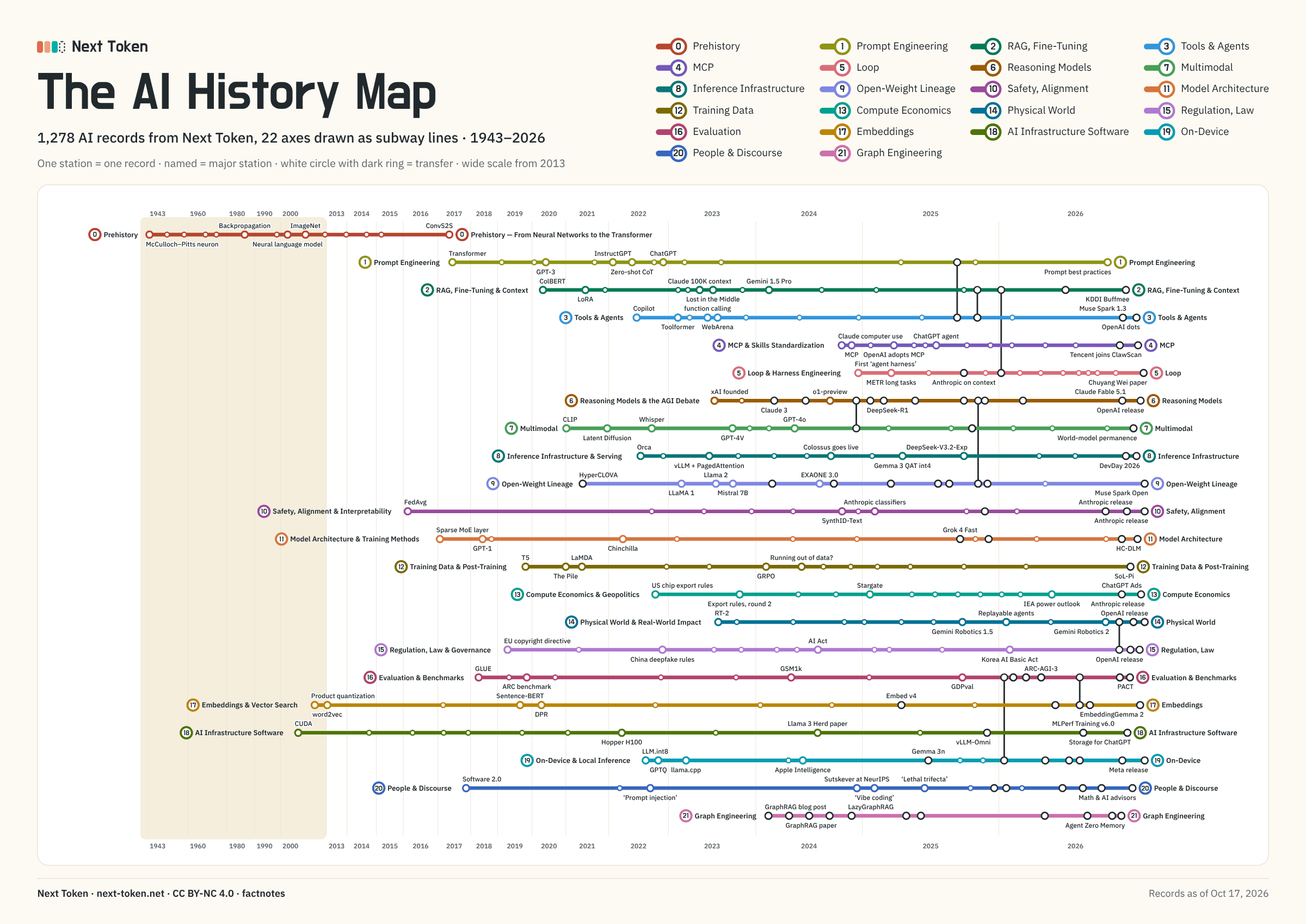
Student devices (phones, tablets or computers), printed worksheets, and one A3 map poster for the wall.
  1. Week 1

    How does AI talk?

    Do DAY 01 and DAY 02 with their worksheets. With the time left, play “Today's Next Token”: guess the next word a public AI model picked, and feel how AI writes one word at a time.

  2. Week 2

    How we got here

    Put up the map poster. Each group picks one line (axis), reads the records of three of its stations and presents them in a minute. Finish with DAY 14 (2017: the Transformer).

  3. Week 3

    What to watch out for

    After DAY 42 (Fake news), each student writes one sentence about AI history in “Is it true?” and sees whether its years, dates and numbers match the record. It's rule-based, uses no AI, and doesn't keep the sentence.

  4. Week 4

    Pulling it together

    Take the weekly quiz together in class mode. Then each student picks a word from “AI Words” and explains it to a classmate in one minute. The part reviews help look back over the four weeks.

What students need

  • Just a web browser with internet: phones, tablets and computers all work, and there's nothing to install.
  • No accounts. Nobody signs up or signs in.
  • No personal data. Nothing asks for a name, an email or a phone number.
  • In a class quiz the server picks a random nickname. A class deletes itself 30 days after it's made, and no names or IP addresses are stored.
  • Progress and game results stay in that device's browser and are never sent to the server.
  • Text written by AI, like the weekly quiz questions, is marked as AI-made on the screen.
  • Quiz and game screens carry no ads. Other pages may show ads.

Files to print

All free to download and print.

How you may use it

Same as the lessons: CC BY-NC 4.0. Print it and share it freely in class, in training or in a club. Credit “Next Token · next-token.net” and include the author link (blog.naver.com/factnotes). If you change anything, say so. It may not be sold or used for commercial purposes.

Credit line

Next Token · next-token.net · by factnotes (blog.naver.com/factnotes) · CC BY-NC 4.0

More ways to use it